Sites Beta
Sites let you group devices by physical location and share an entire site's worth of devices
with other users or teams in a single step.
Navigate to /sites from the main menu to get started.
Sites List

The Sites page lists every site you own, with the site name, address, and description.
Click any site row to open the site detail page.
To create a new site, click New Site and enter a name (minimum 2 characters).
Site Detail
Info
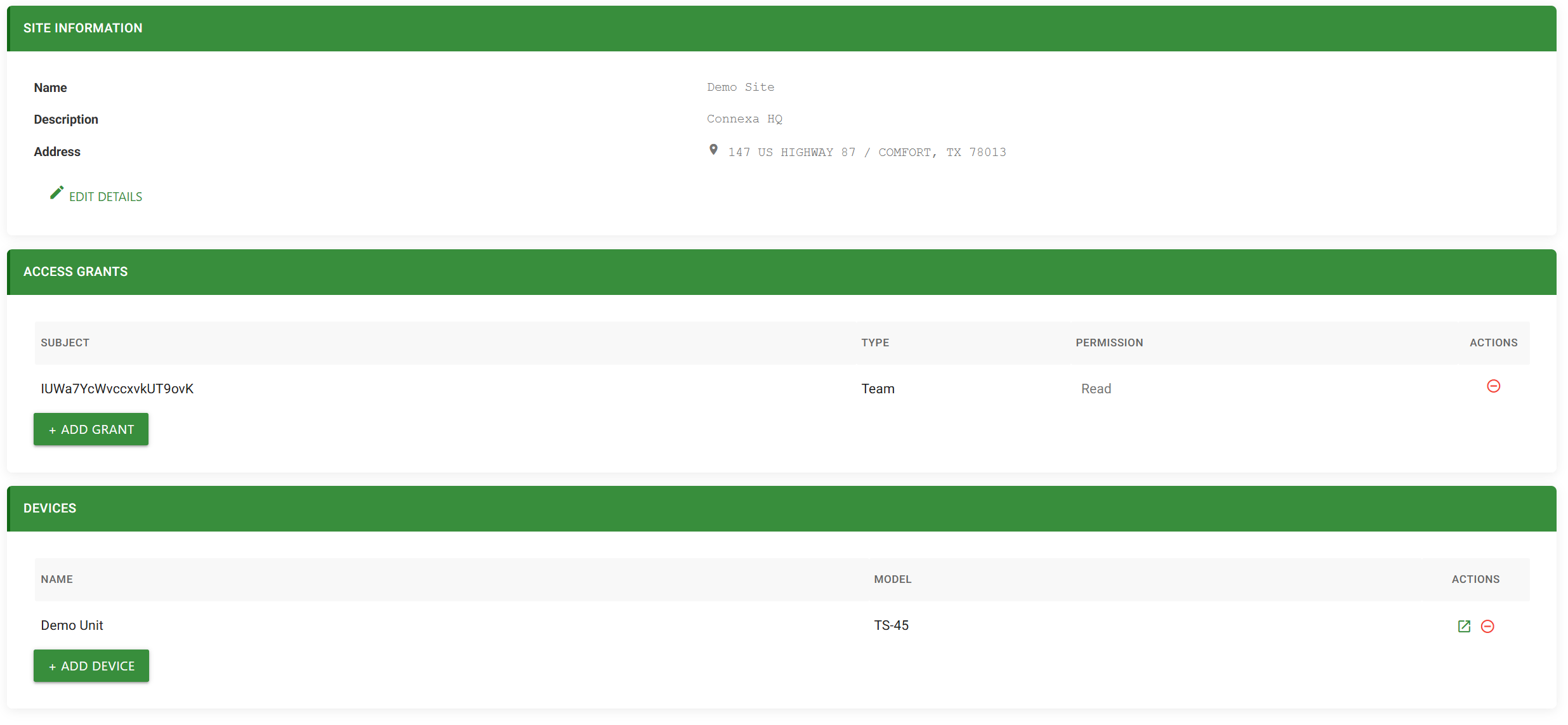
The Info panel displays the site's name, description, and address. Click Edit Details to edit any of these fields inline. Changes are saved immediately to the platform.
To delete a site, use the delete option in the Info panel. A confirmation dialog will appear. Deleting a site removes the site record and unassigns all devices from it — the devices themselves are not deleted.
Access Grants

The Access Grants panel controls who has access to the site and all devices assigned to it.
You can share a site with: - A specific user — enter their email address. - A team — select from the team dropdown. All members of that team will gain access.
Shared users and teams appear in the Access Grants table. To revoke access, remove the corresponding entry from the table.
Info
Sharing a site does not automatically share devices that are added to the site after the grant was created. Manage device-level sharing directly on the Device Management page if needed.
Devices
The Devices panel shows all devices currently assigned to this site.
Click any device row to navigate to that device's dashboard.
Adding a Device
Click the Add Device dropdown, select a device from the list, and confirm. The device will appear in the panel and its site assignment will be updated on the platform.
Removing a Device
Click the remove action on a device row to unassign it from the site. The device's site assignment is cleared, but the device remains on your account.
Info
Only the site owner can see the add and remove controls. Shared users with access to the site can view the device list but cannot modify it.