Device Management
Device List

This is the default landing page for the site. It will list off all of your devices along with these fields:
Device Name: The name for your device. This can be changed at any time.
Device ID: The ID of the Noi gateway device.
Tags: These are additional fields you can use to help organize your devices. Adding deployment information like city, site id, etc.
Last Communication: The last time data was reported from your device.
Charge Controller: The model of charge controller the device is configured for.
CC Firmware Version: The firmware versions running on the charge controller and Noi gateway.
Battery Voltage: The last reported battery voltage.
Load: This switch will indicate the last reported load_state and can be toggled to turn the load on/off.
Site: Dropdown to assign the device to a Site. The current site assignment is shown inline and can be changed at any time.
User: The account the device is registered to.
Click anywhere on a device row to navigate to that device's dashboard.
 Edit device information.
 Delete a device from your account.
 Share this device with another user or a team. See Sharing Devices below.
Pagination
The device list displays up to 20 devices per page by default. Use the pagination bar at the bottom of the list to navigate between pages.
- Page size: Change the number of devices shown per page (20 or 50) using the selector in the pagination bar. Changing the page size resets to page 1.
- Sorting: Click any column header to sort by that field. Click the same header again to reverse the sort direction. An arrow indicator shows the active sort column and direction. Changing the sort field resets to page 1.
- Live updates: Device rows update automatically when data changes on the platform — a full page reload is not required.
Info
Sorting requires Firestore composite indexes to be configured on the backend. If an index is missing, an error will be displayed rather than a blank table.
Sharing Devices Beta
Click the share icon on any device row to open the share dialog for that device.
You can share a device with: - A specific user — enter their email address. - A team — select a team from the dropdown. All current and future members of that team will have access. See the Teams page for how to manage teams.
When sharing, choose a permission level: - Read — the recipient can view the device's data and dashboard but cannot control it. - Write — the recipient can view and interact with the device, including load control and settings.
To revoke a share, open the share dialog and remove the entry for that user or team.
Info
You cannot share a device with yourself.
Shared With Me
Devices shared with you by other users or teams appear in a separate Shared With Me section below your own device list. The same row and column layout applies.
- Devices shared at Read permission will have load controls and interactive elements disabled.
- Devices shared at Write permission are fully interactive.
The Shared With Me section has its own pagination bar if you have more than 20 shared devices.
Add Device
This will initiate the Device Claiming process.
Edit Device Info
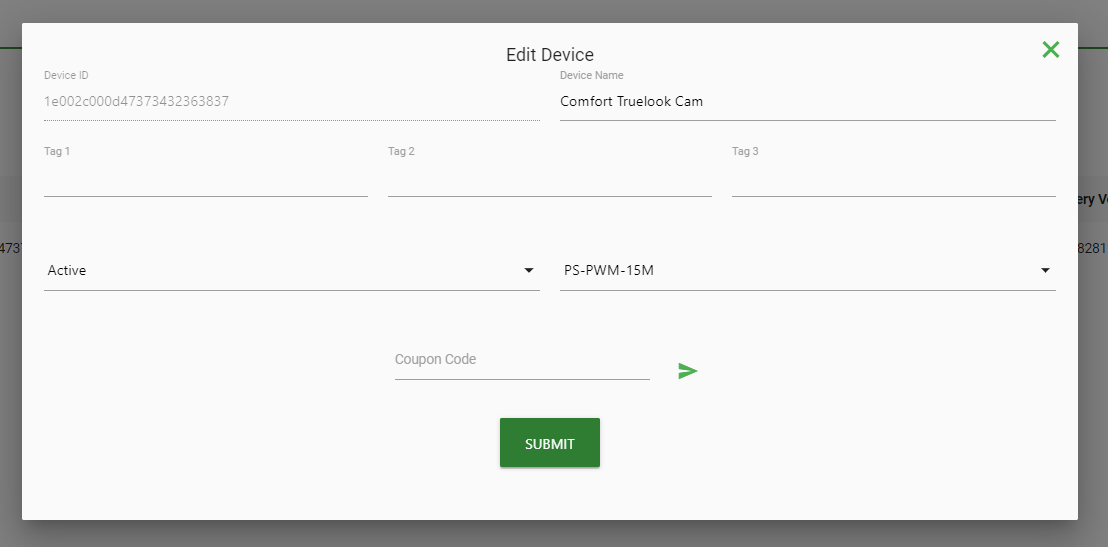
This will allow you to update any of the information for the device. This is also how you will apply new comp codes to keep the device online if you are not on a subscription.